Guide / Translation workflow
Typesetting
Composites the translated text back into the artwork
Settings
Composites the translated text back into the artwork, matching the original styling. You can choose the font used for compositing.
Limit the composite range (optional)
If you don't specify otherwise, everything from Detection and Translation is composited. To composite only part of it, Cmd(Ctrl)+click in the Layers panel to select one layer from each of the two folders (selecting from only one folder composites everything). The two layers must correspond to each other — a mismatched pair composites text in the wrong place.
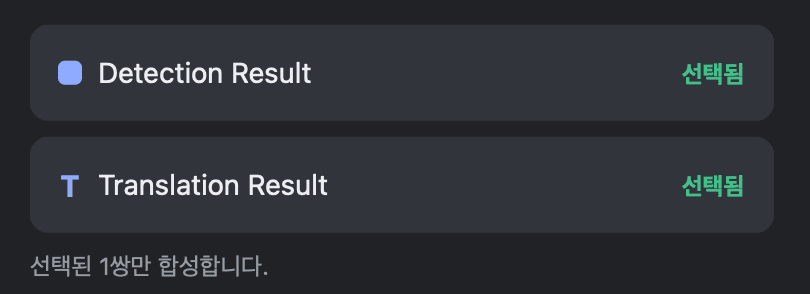
Switch the layer preview
Control which layers are visible. All shows every layer, Original hides the working groups and shows only the original layers, and Composite hides the original and shows only the composited result. Typeset result shows the typeset output and clean balloons over the original, hiding the detection, recognition, and translation layers.
Start compositing
When you're done, click Start compositing. It switches to the Typeset result view automatically when finished so you can check the output right away.
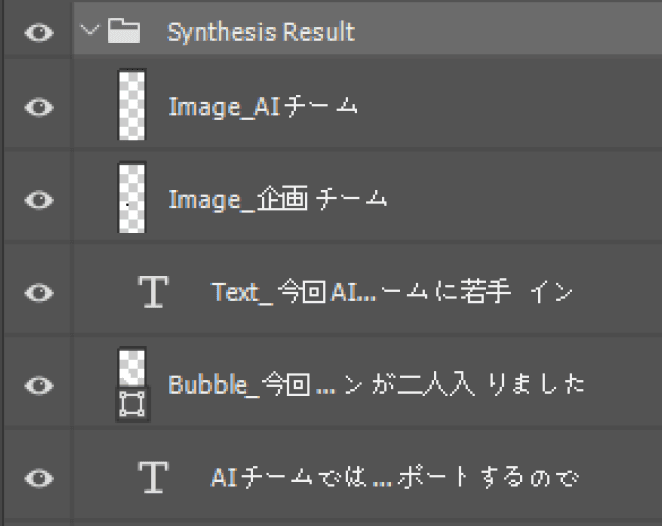
Layers panel after compositing
Re-compositing part of a page
If you fixed a translation or want to redo just one balloon or sound effect, there's no need to rerun everything. As in Step 2, Cmd(Ctrl)+click in the Layers panel to select only that item's Detection Result and Translation Result layers, then click Start compositing again to recomposite only that part.
About credits
Compositing consumes credits. Each individual item (one balloon or sound effect) can be regenerated free up to three times; from the fourth attempt onward it's charged. Adult-rated content is charged at 1.2×. Only completed generations are charged — calls that fail are not.
Saving and exporting
Save the finished file with Photoshop's normal save options (Save, Save As, Export, and so on) in whatever format you need.