Guide / Translation workflow
Recognition
Reads the text inside detected areas
Settings
Recognizes the text inside the areas found during Detection. You can set the source language and font size. Font size is only a reference for gauging character size — a rough value is enough.
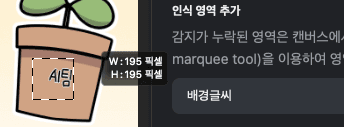
Add a recognition area
If detection missed an area, pick its type (balloon, sound effect, or background text), select the region on the canvas with the Rectangular Marquee Tool, and click Add selection to include it.
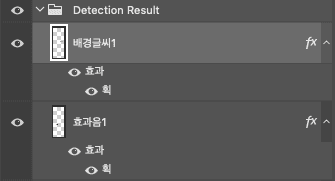
Start recognition
When you're done, click Start recognition. A Recognition Result folder is added to the Layers panel when it finishes. Text that couldn't be read — faint lettering, unusual typefaces — or was read incorrectly can be fixed by selecting that layer in the panel.
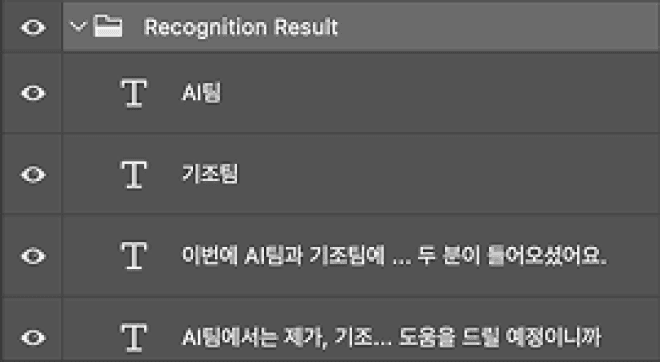
Layers panel after recognition