Guide / Translation workflow
Translation
Translates the recognized text
Settings
Translates the recognized text into the language you want. You can set both the source and target languages.
Upload a glossary (optional)
To keep specific terms consistent, register a glossary with Upload file. Only Excel files are supported (not CSV); you can simply list source and translation side by side without headers and the languages are detected automatically. It still works if you don't follow a fixed format, but clearer columns improve accuracy. When a registered term appears in the source, its mapped wording takes priority.
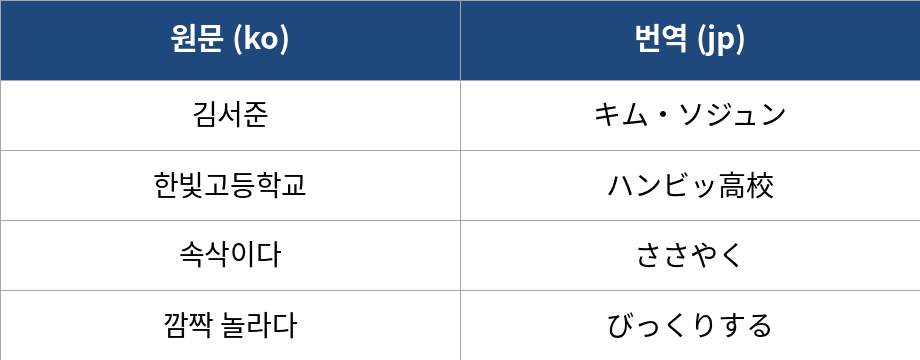
Glossary example
Start translation
When you're done, click Start translation. A Translation Result folder is added to the Layers panel when it finishes. Edits you make to the text in the panel apply immediately, and manual edits don't consume credits.
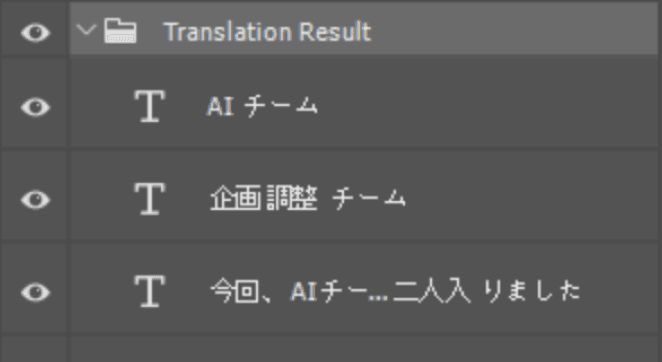
Layers panel after translation